मोबाइल से DSC वीडियो कैसे करें
How to complete your DSC video on mobile
पूरा काम 3–5 मिनट का है। नीचे दिए steps एक-एक करके करें।
It takes 3–5 minutes. Follow the steps below one by one.
⚠ आपके DSC के लिए · For your DSC:
वीडियो में लाइन पढ़ने के बाद camera को दिखाएँ:
After reading the line in the video, show to the camera:
▶ Start Video Verification
नीचे के steps पढ़कर यहाँ से वीडियो शुरू करें · Read the steps below, then start here
शुरू करने से पहले · Before you start
- वही मोबाइल नंबर पास रखें जो DSC फ़ॉर्म में दिया था (आधार से जुड़ा या आपका अपना नंबर) — OTP उसी पर आएगा।
- टोपी, चश्मा, धूप का चश्मा, headphone या earphone उतार दें।
- सादी दीवार के सामने बैठें, चेहरे पर अच्छी रोशनी हो (पीछे खिड़की या तेज़ लाइट न हो)।
- Chrome browser में link खोलें और इंटरनेट ठीक चल रहा हो।
- शांत जगह चुनें, ताकि आपकी आवाज़ साफ़ आए।
- जो original documents दिखाने हैं, उन्हें पहले से पास रख लें (नीचे "documents दिखाएँ" देखें)।
- Keep the mobile number you gave in the DSC form (Aadhaar-linked or your own) — the OTP comes on it.
- Remove cap, spectacles, sunglasses, headphones or earphones.
- Sit in front of a plain wall with good light on your face (no window or bright light behind you).
- Open the link in Chrome, with a good internet connection.
- Choose a quiet place so your voice is clear.
- Keep the original documents you need to show ready (see "Show your documents" below).
1
मोबाइल नंबर डालेंEnter your mobile number
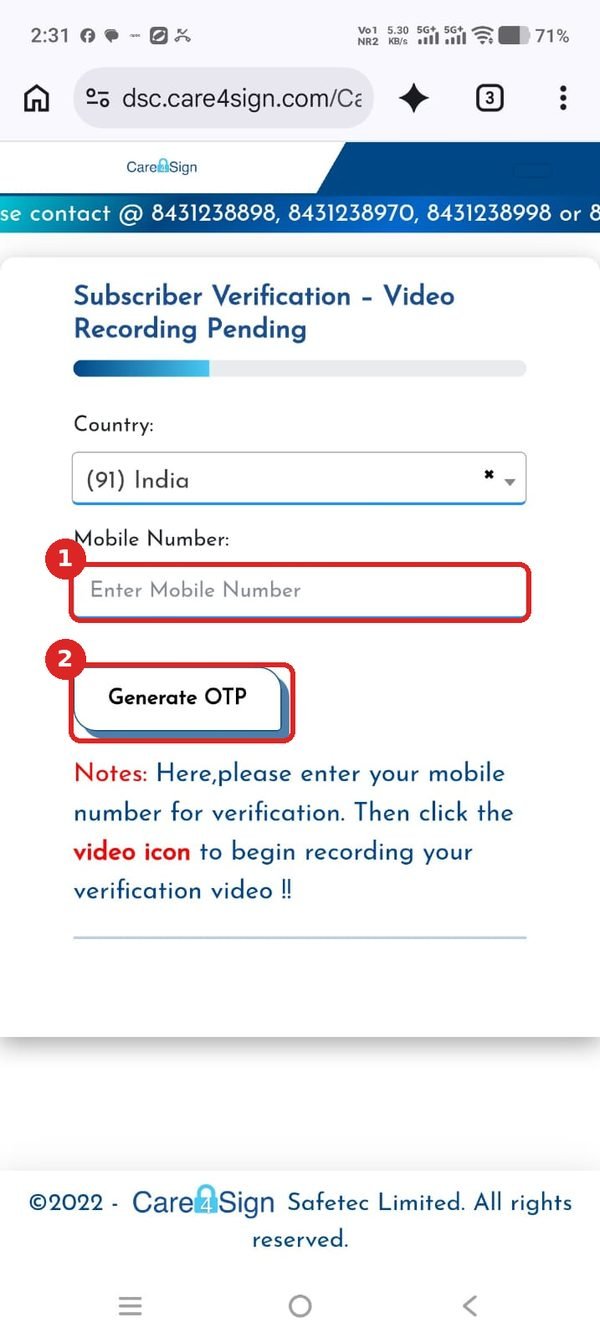
WhatsApp पर आया Video link खोलें। 1 में DSC फ़ॉर्म वाला मोबाइल नंबर डालें, फिर 2 Generate OTP दबाएँ।
Open the video link you received on WhatsApp. At 1 type the mobile number given in the DSC form, then tap 2 Generate OTP.
2
OTP डालकर Verify करेंEnter the OTP and verify
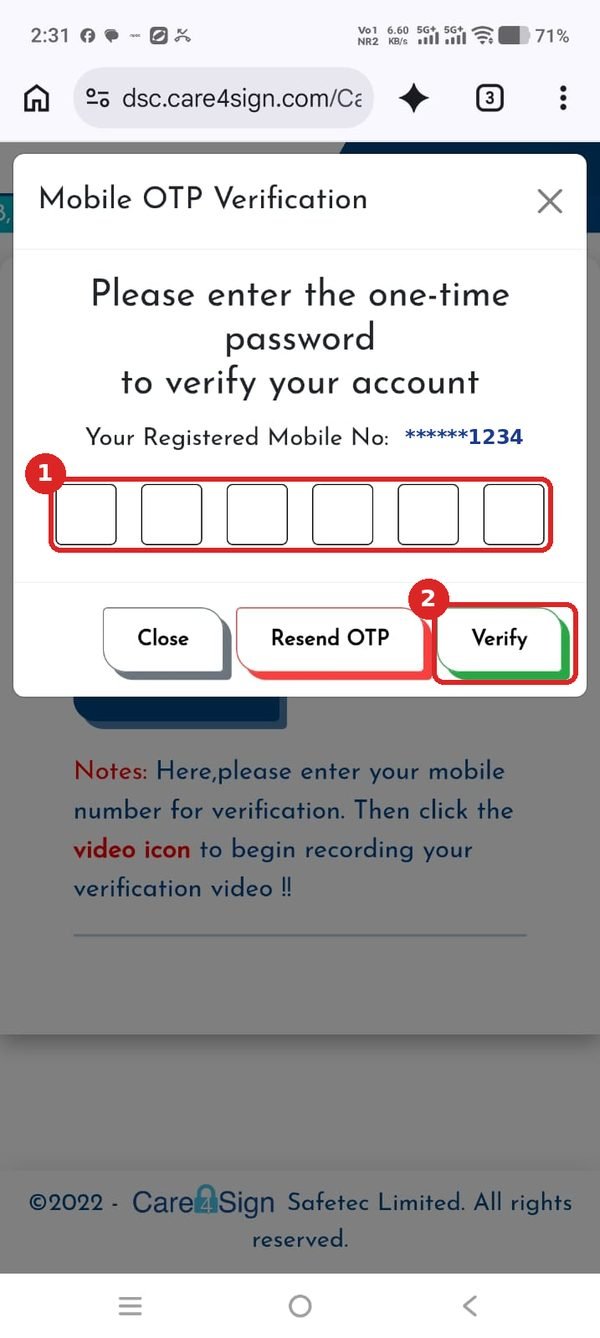
मोबाइल पर आया 6 अंकों का OTP 1 खानों में भरें और 2 Verify दबाएँ। OTP न आए तो 1 मिनट बाद Resend OTP दबाएँ।
Fill the 6-digit OTP in the boxes at 1 and tap 2 Verify. If the OTP does not come, wait 1 minute and tap Resend OTP.
3
Record Video दबाएँTap Record Video
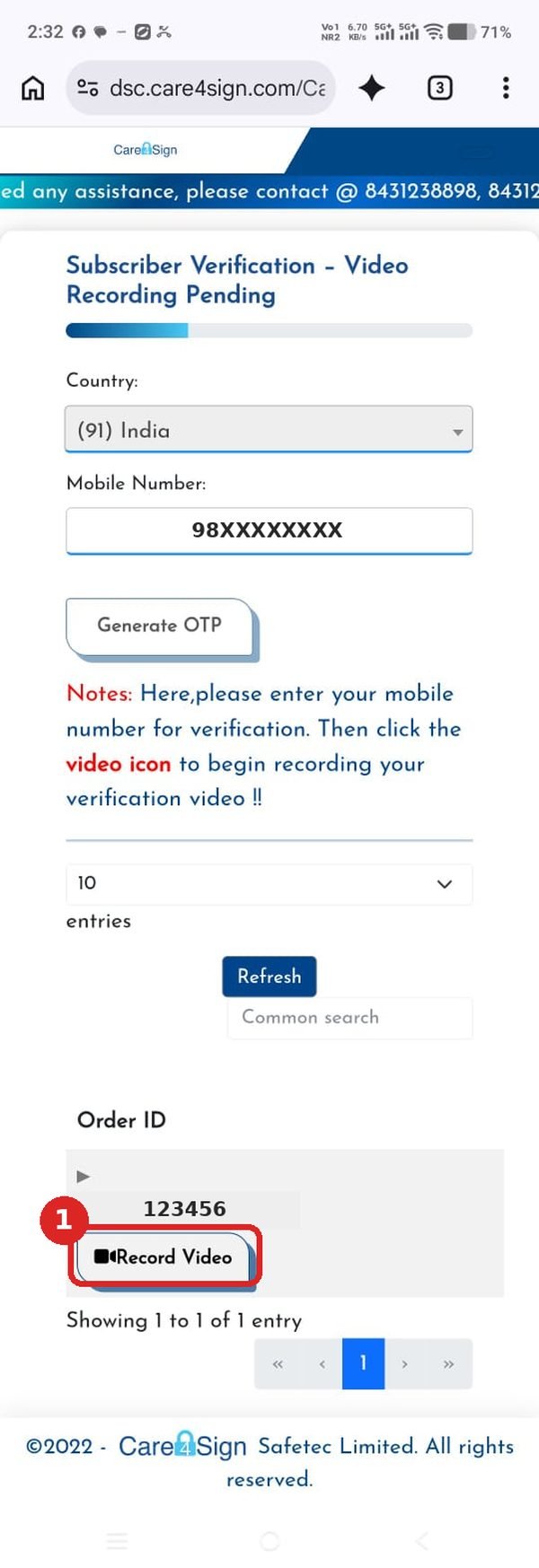
नीचे की तरफ़ आपका Order ID दिखेगा। उसके नीचे 1 Record Video दबाएँ।
Your Order ID appears lower on the page. Tap 1 Record Video below it.
4
निर्देश पढ़ें, Tick करें, Proceed VideoRead, tick the box, tap Proceed Video
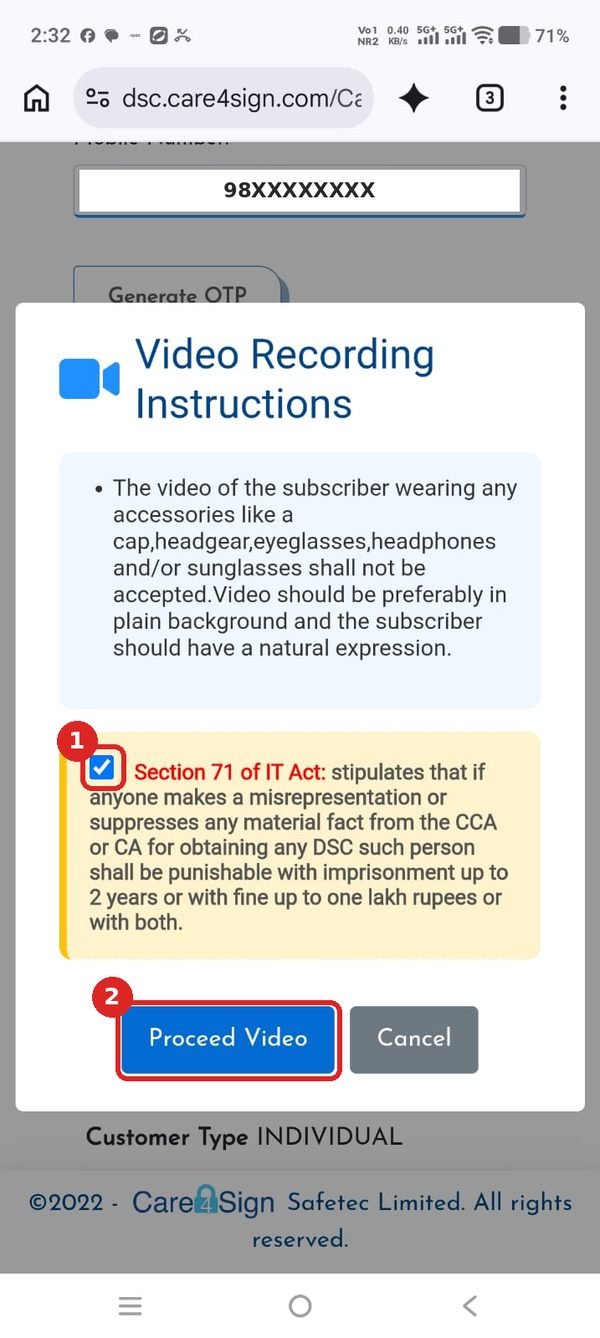
"Video Recording Instructions" वाला box खुलेगा। निर्देश ध्यान से पढ़ें, 1 वाले खाने पर tick करें, फिर 2 Proceed Video दबाएँ।
The "Video Recording Instructions" box opens. Read it carefully, tick the box at 1, then tap 2 Proceed Video.
5
Camera और Microphone की अनुमति देंAllow camera and microphone
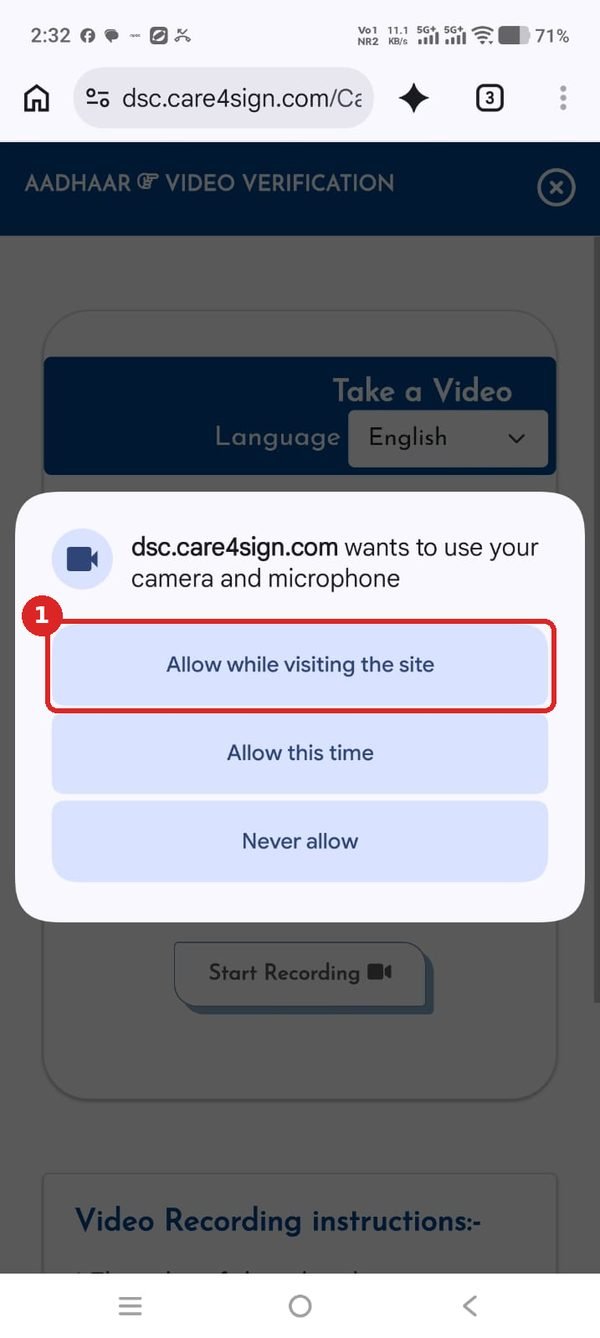
Phone पूछेगा कि site camera और microphone इस्तेमाल कर सकती है या नहीं — 1 Allow while visiting the site दबाएँ। Never allow न दबाएँ।
Your phone asks for camera and microphone permission — tap 1 Allow while visiting the site. Do not tap Never allow.
6
भाषा चुनें और वीडियो रिकॉर्ड करेंChoose language and record
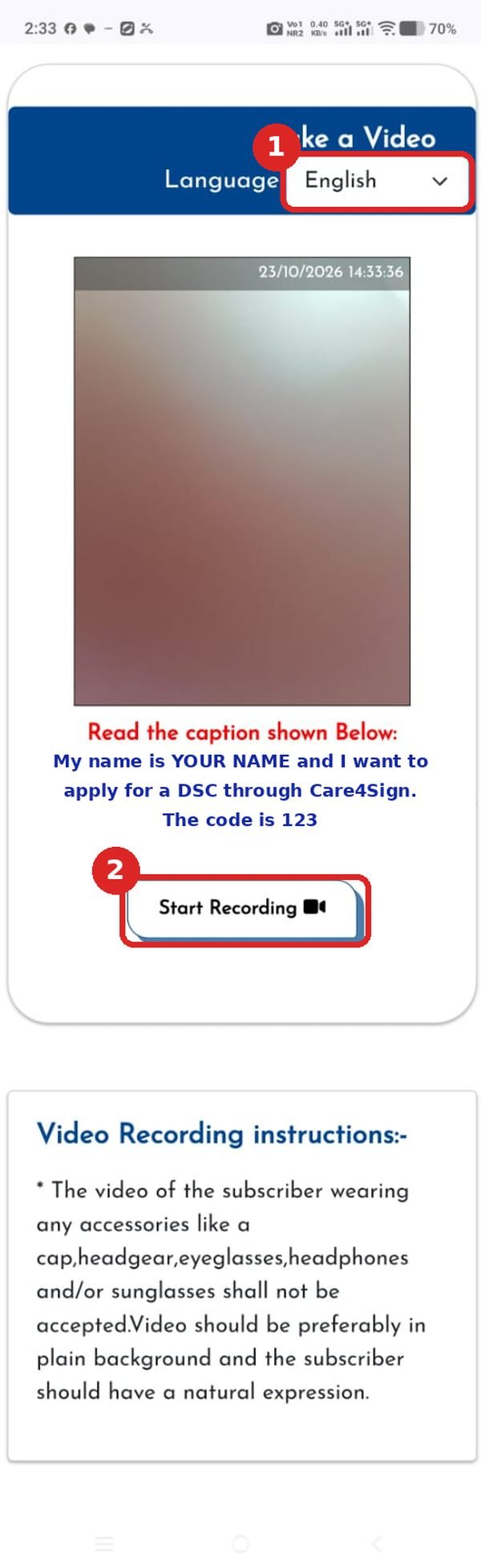
1 Language में Hindi या English चुनें — जो पढ़ने में आसान हो। चेहरा कैमरे के बीच में रखें, फिर 2 Start Recording दबाएँ और screen पर लिखी लाइन (आपका नाम और code) साफ़ और ज़ोर से पढ़ें। उसके बाद ज़रूरी documents दिखाएँ (नीचे देखें)।
At 1 choose Hindi or English — whichever is easier to read. Keep your face in the middle of the camera, tap 2 Start Recording and read the line on the screen (your name and the code) clearly and loudly. Then show the required documents (see below).
📄
लाइन पढ़ने के बाद documents दिखाएँAfter reading the line, show your documents
Step 6 में लाइन पढ़ने के बाद, recording चलते-चलते, नीचे दिए documents एक-एक करके camera के पास लाएँ और हर एक को 2–3 सेकंड रोककर दिखाएँ, ताकि अक्षर साफ़ पढ़े जा सकें। Original दिखाएँ, photocopy नहीं।
After reading the line in Step 6, while recording is still on, bring the documents below to the camera one by one and hold each for 2–3 seconds so the text is readable. Show the originals, not photocopies.
Individual · PAN-based
अपना original PAN card और original Aadhaar card।
Your original PAN card and original Aadhaar card.
Individual · Aadhaar-based
कोई document नहीं — बस लाइन साफ़ पढ़ें।
No document — just read the line clearly.
Organization · PAN-based
अपना original PAN और Aadhaar, फिर authority letter और organization का कोई एक document — जैसे GST Registration Certificate (सबसे आसान), Certificate of Incorporation (Company / LLP), Partnership Deed, Trust Deed या Society Registration Certificate, Udyam Registration Certificate।
Your original PAN and Aadhaar, then the authority letter and any one organization document — e.g. GST Registration Certificate (easiest), Certificate of Incorporation (Company / LLP), Partnership Deed, Trust Deed or Society Registration Certificate, Udyam Registration Certificate.
Organization · Aadhaar-based
PAN या Aadhaar दिखाने की ज़रूरत नहीं — सिर्फ़ authority letter और organization का कोई एक document — जैसे GST Registration Certificate (सबसे आसान), Certificate of Incorporation (Company / LLP), Partnership Deed, Trust Deed या Society Registration Certificate, Udyam Registration Certificate।
No PAN or Aadhaar needed — only the authority letter and any one organization document — e.g. GST Registration Certificate (easiest), Certificate of Incorporation (Company / LLP), Partnership Deed, Trust Deed or Society Registration Certificate, Udyam Registration Certificate.
आपका DSC किस प्रकार का है, यह न पता हो तो हमें call करें · Not sure which one is yours? Call us.
7
देखें और Proceed करेंCheck and tap Proceed
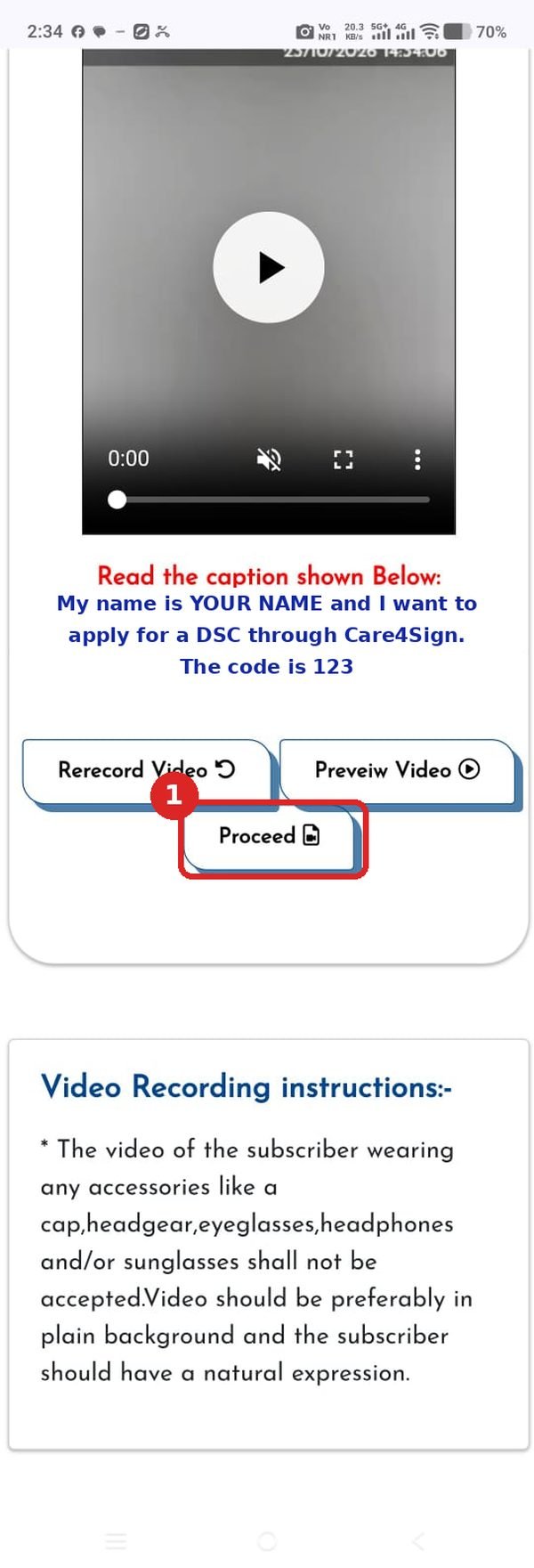
चाहें तो Preview Video से देख लें। गलती हो गई हो तो Rerecord Video से दोबारा बनाएँ। सब ठीक हो तो 1 Proceed दबाएँ।
You may check it with Preview Video. If there was a mistake, use Rerecord Video. When it is fine, tap 1 Proceed.
✓
हो गया!Done!
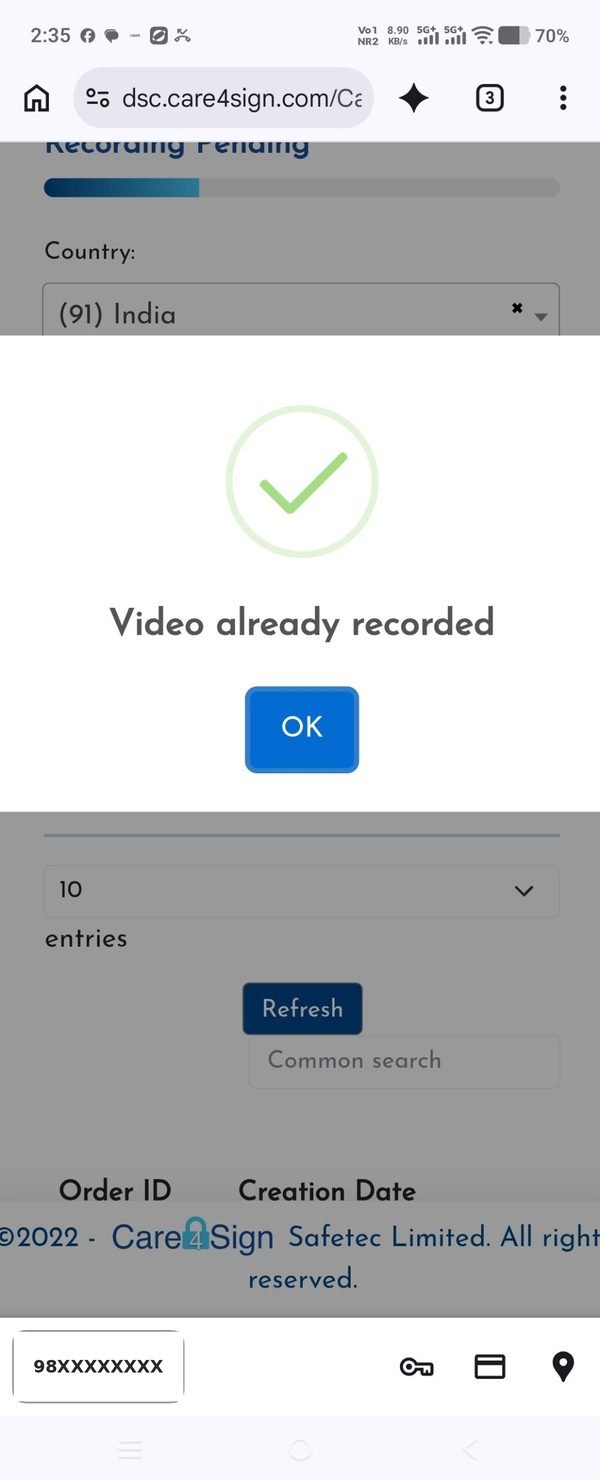
हरे ✓ का निशान आने का मतलब है आपकी वीडियो जमा हो गई। Link दोबारा खोलने पर "Video already recorded" दिखे तो भी कुछ नहीं करना — वीडियो पहले ही जमा है। आगे का काम हम करेंगे और WhatsApp पर बताते रहेंगे।
The green ✓ means your video has been submitted. If you open the link again and see "Video already recorded", nothing more is needed — the video is already submitted. We will do the rest and keep you updated on WhatsApp.
वीडियो reject होने के आम कारण · Common reasons for rejection
- चश्मा, टोपी या headphone पहनकर वीडियो बनाना
- चेहरे पर कम रोशनी, या चेहरा आधा फ़्रेम से बाहर
- लाइन धीरे या अधूरी पढ़ना, या code गलत बोलना
- पीछे शोर, या कोई दूसरा व्यक्ति बोलता हुआ
- Wearing spectacles, a cap or headphones in the video
- Low light on the face, or face partly outside the frame
- Reading the line too softly or incompletely, or saying the wrong code
- Background noise, or another person speaking
▶ Start Video Verification
Care4Sign की वीडियो वाली site खुलेगी · Opens the Care4Sign video page
मदद चाहिए? · Need help?
सोमवार–शनिवार, सुबह 9:45 – शाम 7:00 · Mon–Sat, 9:45 AM – 7:00 PM